How to Disable Startup Apps in Windows 11 (and Speed Up Boot Time)
Step-by-step ways to turn off startup apps in Windows 11, which ones to keep, other quick speed fixes, and a free startup cleanup planner.
 Aarav VanceUpdated November 3, 2026 · 5 min read
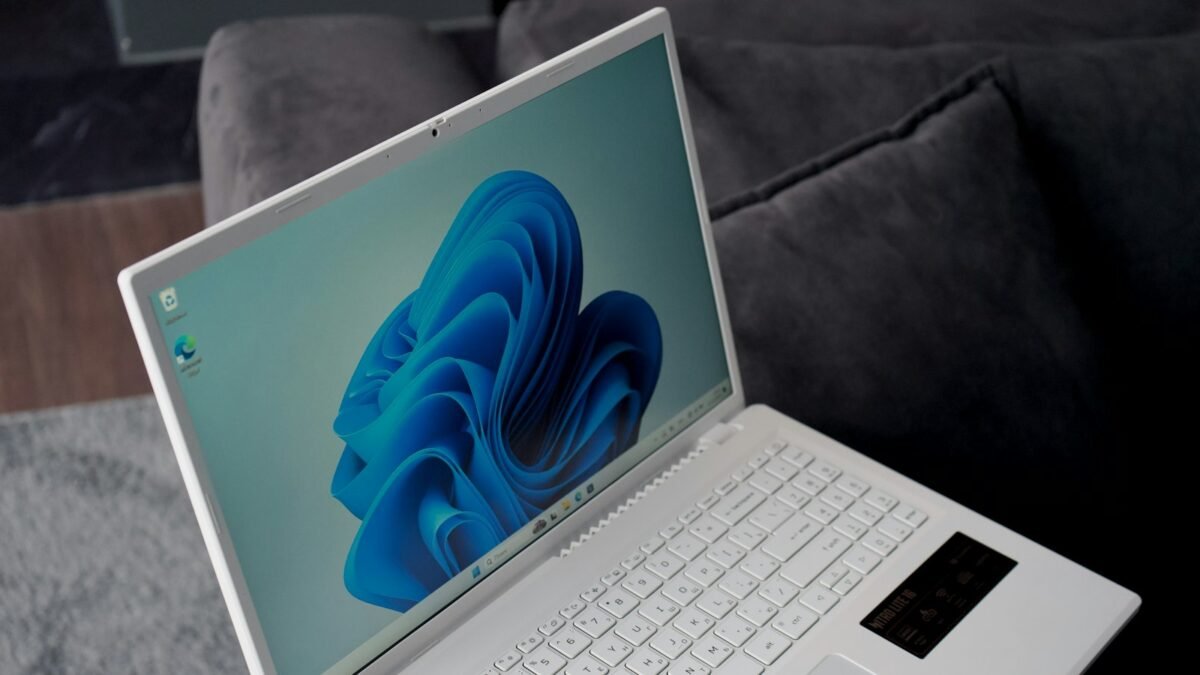
To make Windows 11 start faster, open Settings, go to Apps and then Startup, and switch off apps you do not need the moment your PC turns on. Keep security software, audio and touchpad drivers on. Most people can safely disable chat apps, game launchers, cloud tools they rarely use and updaters.
A new Windows laptop often boots in seconds. A year later, it takes minutes before you can open anything. The usual reason is not age. It is the growing list of apps that quietly launch every time you sign in.
This guide shows how to find and turn off startup apps safely in Windows 11, which ones to keep, and other quick fixes for slow startup. Use the free startup planner below to decide what to switch off.
What Are Startup Apps?
Startup apps are programs that Windows launches automatically when you sign in. Some are important, like antivirus. Many are not: they just want to be ready instantly, at the cost of your PC’s speed.
- Slower sign-in: each app competes for the processor and disk at boot.
- Less memory: background apps hold onto RAM all day.
- More notifications: pop-ups and update prompts you did not ask for.
- Shorter battery life: background activity drains laptops.
Keep or Disable? A Quick Guide
| Type of app | Usually | Why |
|---|---|---|
| Windows Security / antivirus | Keep | Protects you from the moment you sign in |
| Audio, touchpad, graphics drivers | Keep | Hardware may not work properly without them |
| Main cloud storage (OneDrive, Google Drive) | Keep if you use it daily | Keeps files in sync |
| Chat apps (Teams, Discord, Skype) | Disable unless needed at sign-in | Open them when you need them |
| Game launchers (Steam, Epic, EA) | Disable | Heavy, and only needed when gaming |
| Updaters and helpers | Usually disable | Apps still update when opened |
| Unknown names | Search first | Could be a driver, or something unwanted |
How to Turn Off Startup Apps in Windows 11
Method 1: Settings
Open Settings, choose Apps, then Startup. Switch off any app you do not need at sign-in. The “impact” label shows how much each app slows startup.
Method 2: Task Manager
Press Ctrl + Shift + Esc, open the Startup apps page, right-click an app and choose Disable. Task Manager also shows the time of your last startup.
Method 3: Inside the app
Many apps have a setting like “Open at login” or “Start with Windows”. Turning it off there stops the app re-enabling itself after updates.
Free Startup Cleanup Planner
Tick the kinds of apps you see in your startup list. The planner tells you which to keep and which are usually safe to switch off. Nothing is saved.
Startup Cleanup Planner
Tick what appears in Settings > Apps > Startup.
Other Quick Fixes for Slow Startup
- Restart regularly: a full restart clears memory and finishes updates.
- Install updates: Windows and driver updates often fix boot slowdowns.
- Free up disk space: keep at least 15 to 20 percent of your drive empty.
- Uninstall apps you never use: Settings, Apps, Installed apps.
- Upgrade to an SSD: if your PC still uses a hard drive, this is the biggest speed boost.
Who Benefits Most?
- Students: older laptops that need to be ready for class quickly.
- Freelancers: less waiting, more billable time.
- Office workers: faster start before morning meetings.
- Small businesses: extending the life of existing PCs.
What Not to Do
- Do not disable security software or hardware drivers.
- Avoid “PC cleaner” apps that promise huge speed boosts; many add their own startup entries and ads.
- Do not delete unknown files from system folders.
- Do not edit the registry unless you know exactly what you are doing.
Microsoft’s own tips to improve PC performance cover more settings if your PC is still slow.

How to Get Started
- Open Settings, Apps, Startup.
- Sort by startup impact.
- Keep security, drivers and daily cloud storage.
- Disable chat apps, game launchers and updaters.
- Turn off auto-start inside stubborn apps.
- Restart and check the result.
Frequently Asked Questions
Is it safe to disable startup apps?
Yes, for most apps. Keep antivirus and hardware drivers on, and search any name you do not recognise.
Will disabled apps still update?
Most apps check for updates when you open them, so they stay current.
Why does an app keep coming back?
Some apps re-enable themselves after updates. Turn off the auto-start option inside the app’s own settings.
Should I disable OneDrive?
Only if you do not use it. If you rely on it for backup or syncing, keep it on.
Does Fast Startup help?
It can make cold boots quicker, but it can also cause issues with some updates and dual-boot setups. A normal restart still does a full refresh.
Do PC cleaner apps help?
Usually not. Windows has the tools you need built in.
Final Thoughts
- Startup apps are the most common cause of slow sign-in.
- Keep security and drivers; disable the rest you do not need.
- Restart, update and free up space for the best results.
Explore More on TechWiseToday

Aarav Vance is a technology strategist and writer at TechWiseToday. With over 8 years of experience in software engineering and artificial intelligence, he breaks down complex tech concepts into actionable insights. When he isn't testing the latest AI tools or reviewing enterprise software, Aarav can be found writing code for open-source projects or tinkering with home automation setups.