How to Choose a Project Management Tool for a Small Team
A simple five-step way to choose the right project management tool for a small team, the features that matter, hidden costs, and a free yearly cost calculator.
 Aarav VanceUpdated November 3, 2026 · 6 min read

To choose a project management tool, start with how your team works (lists, boards or timelines), how many people need access and which apps it must connect to. Then trial two or three tools with a real project for two weeks and compare the true yearly cost, not just the headline monthly price.
Trello, Asana, Monday.com, ClickUp, Notion, Jira, Basecamp: there are dozens of project management tools, and most look great in a demo. The trouble starts three months later, when half the team has stopped updating it and the bill has doubled because you added a few people.
This guide gives you a simple way to choose the right tool for a small team, the features that actually matter, and the hidden costs to watch for. Use the free SaaS cost calculator below to compare real yearly prices.
What Does a Project Management Tool Do?
At its simplest, a project management tool is one shared place where your team can see what needs doing, who is doing it and when it is due. That replaces scattered emails, chat messages and spreadsheets.
- Tasks and owners: every job has a clear person responsible.
- Due dates: deadlines everyone can see.
- Views: lists, Kanban boards, calendars or Gantt timelines.
- Files and comments: conversations stay attached to the task.
- Integrations: links with email, Slack, Google Workspace or Microsoft 365.
Compare the Main Types of Tools
| Tool style | Best for | Watch out for |
|---|---|---|
| Simple boards (e.g. Trello) | Small teams, visual workflows | Gets messy with big projects |
| Work management (e.g. Asana, Monday.com) | Growing teams, many projects | Costs rise per user |
| All-in-one (e.g. ClickUp, Notion) | Teams wanting docs + tasks together | Can feel complex at first |
| Software teams (e.g. Jira) | Developers, sprints, bug tracking | Too technical for non-dev teams |
| Flat-price tools (e.g. Basecamp) | Agencies with many clients | Fewer advanced reports |
Prices and plans change often, so always check each vendor’s pricing page before you decide.
How to Choose in Five Steps
1. Map how you work today
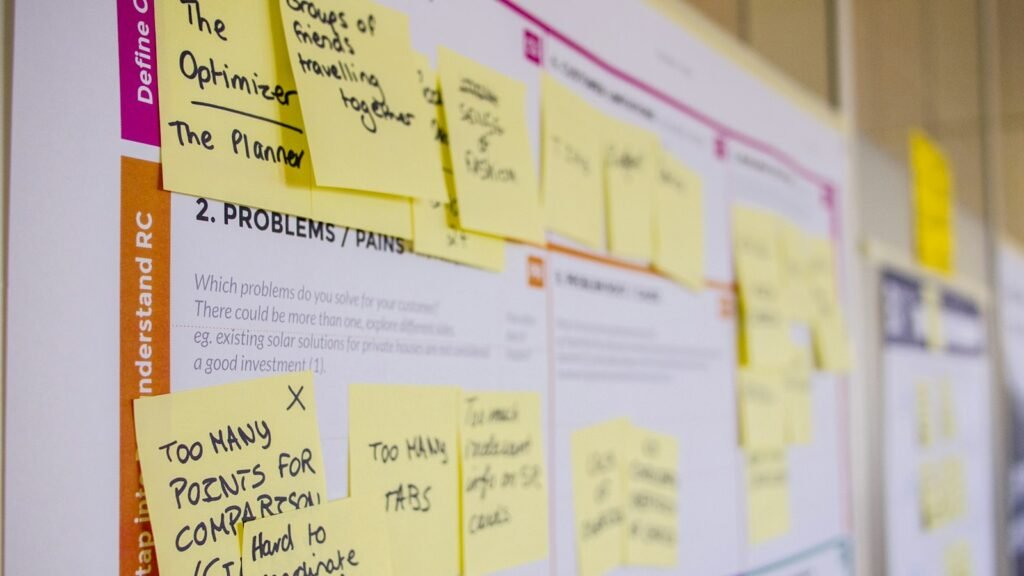
Write down a real project from start to finish. Note who hands work to whom, and where delays happen.
2. Decide your must-have features
Keep it to five. For example: boards, due-date reminders, client guest access, time tracking and a Google Drive integration.
3. Count your users properly
Include part-timers, freelancers and clients who need access. This is where per-user pricing surprises people.
4. Trial two or three tools at once
Run the same small project in each for two weeks. Ask the team which one they would keep.
5. Check the yearly cost and the exit plan
Compare annual totals, and make sure you can export your data if you leave.
Free SaaS Cost Calculator
Enter the price per user and your team size to see the real yearly cost, including growth. Compare two tools side by side. Nothing is saved.
Project Tool Yearly Cost Calculator
Use prices from each vendor’s pricing page, in one currency.
Features That Matter (and Ones That Don’t)
- Matter: a good mobile app, simple task creation, notifications you can control, guest access, reliable search.
- Nice to have: automations, time tracking, templates, AI summaries.
- Often ignored: advanced dashboards and portfolio views that only large teams use.
Who Benefits Most?
- Students: group projects and dissertation planning on free plans.
- Freelancers: client work, deadlines and invoices in one view.
- Professionals: cross-team projects with clear owners.
- Small businesses: fewer missed deadlines and less time in status meetings.
Hidden Costs and Risks
- Per-user pricing that jumps when you add a few people.
- Key features locked behind the next plan up.
- Time spent setting up and training the team.
- Data stuck in a tool with poor export options.
- Privacy: check where data is stored, especially for UK and EU clients under GDPR.
The UK Information Commissioner’s Office has a clear guide to UK GDPR if your tool will hold client personal data.
Where These Tools Are Heading
Most project tools now add AI features that summarise threads, write task descriptions and suggest deadlines. They can save time, but they are only as good as the information your team puts in. Clear task names and up-to-date statuses still matter most.
How to Get Started
- Write down one real workflow from start to finish.
- List five must-have features.
- Count every user who needs access.
- Trial two or three tools with the same project.
- Compare yearly costs with the calculator.
- Choose, set up templates and train the team in one session.
Frequently Asked Questions
What is the easiest project management tool for beginners?
Simple board-based tools are usually the easiest to start with. Try a free plan with one project first.
Are free plans good enough?
For very small teams, often yes. Limits usually appear in users, storage, automations or views.
Should we pay monthly or yearly?
Pay monthly during the first months, then switch to yearly for the discount once the team is happy.
How long should a trial last?
About two weeks with a real project is enough to see if the team will keep using it.
Can clients see our tasks?
Most tools offer guest access or shared boards. Check whether guests are free or paid.
Do we need Gantt charts?
Only if your projects have many dependent steps. Most small teams work fine with lists and boards.
Final Thoughts
- Choose the tool your team will actually use.
- Count all users and compare yearly costs.
- Trial with a real project before you commit.
Explore More on TechWiseToday

Aarav Vance is a technology strategist and writer at TechWiseToday. With over 8 years of experience in software engineering and artificial intelligence, he breaks down complex tech concepts into actionable insights. When he isn't testing the latest AI tools or reviewing enterprise software, Aarav can be found writing code for open-source projects or tinkering with home automation setups.