What Is Two-Factor Authentication (2FA)? How It Works and How to Turn It On
Two-factor authentication explained in plain English: how 2FA works, SMS vs authenticator apps vs passkeys, which accounts to secure first, plus a free 2FA setup planner.
 Aarav VanceUpdated November 4, 2026 · 8 min read
Two-factor authentication (2FA) adds a second check, such as a code from an app or a tap on your phone, after your password. Even if someone steals your password, they still can’t get into your account without that second step.
Most account takeovers don’t involve clever hacking. They start with a password that leaked in a data breach, was reused on another site, or was typed into a fake login page. Two-factor authentication is the simplest way to make that stolen password close to useless.
This guide explains how 2FA works, which method to pick, and the order to switch it on so your most important accounts are protected first. If you haven’t sorted your passwords yet, start with our strong password guide and come back here.
What Is Two-Factor Authentication?
Two-factor authentication means proving who you are in two different ways before you can sign in. Security people group these “factors” into three types:
- Something you know: a password or PIN.
- Something you have: your phone, an authenticator app, or a physical security key.
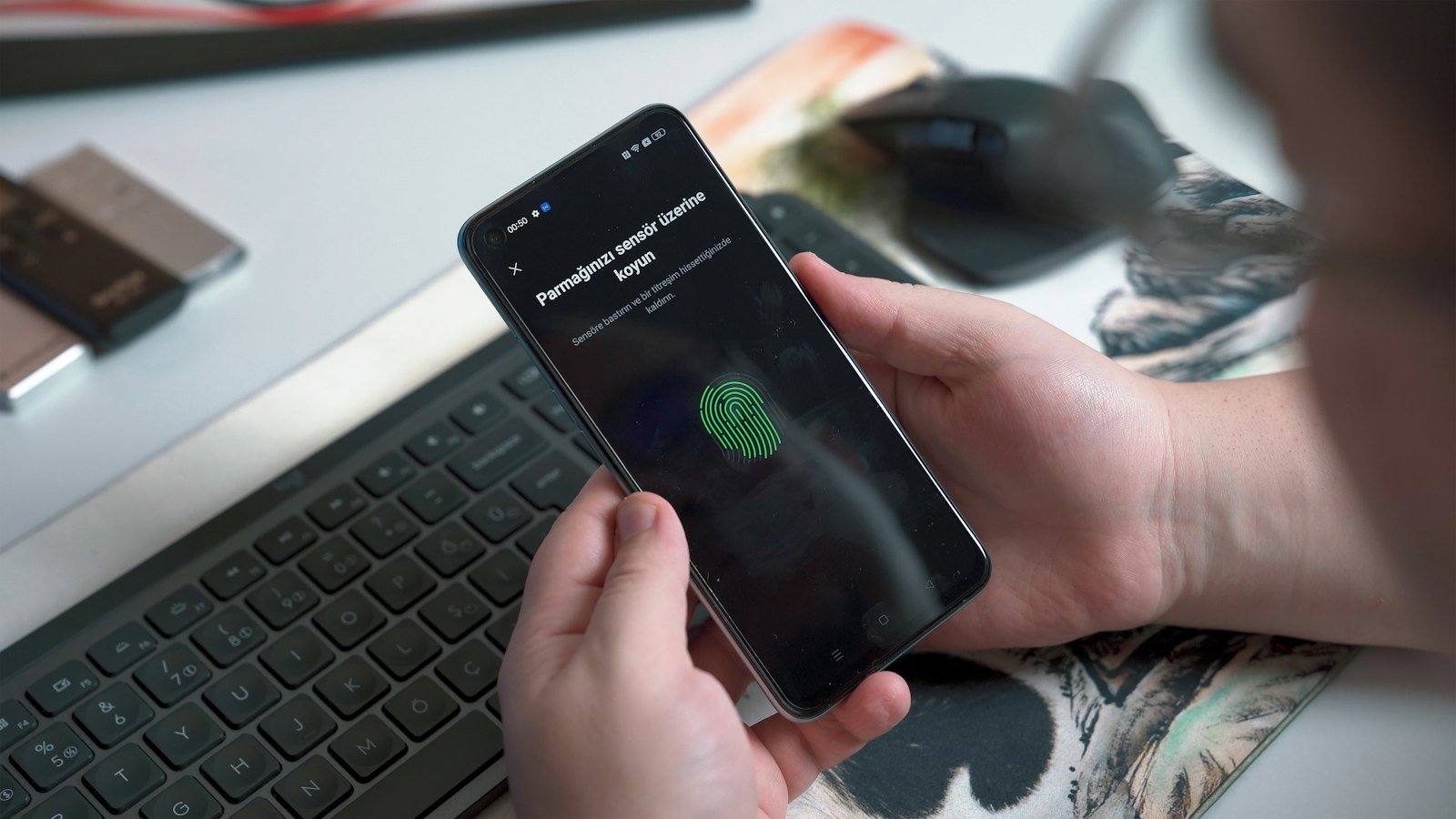
- Something you are: your fingerprint or face, usually checked on your own device.
2FA combines two of these. You’ll also see the terms 2-step verification (Google and Microsoft use this name) and multi-factor authentication (MFA), which covers two or more factors. For everyday use, they mean the same thing: a password alone is no longer enough.
2FA Methods Compared
Not every second factor is equally strong. Here is how the common options stack up.
| Method | How it works | Protection | Best for |
|---|---|---|---|
| SMS text code | A 6-digit code is texted to your phone | Basic. Codes can be intercepted or lost in a SIM swap | Accounts that offer nothing else |
| Email code | A code or link is sent to your inbox | Basic. Only as safe as your email | Low-risk sites |
| Authenticator app | An app makes a new code every 30 seconds, offline | Strong | Most people, most accounts |
| Push approval | Your phone asks “Is this you?” and you tap Yes | Strong, if you never approve prompts you didn’t start | Google, Microsoft and work accounts |
| Passkey or security key | Your device or a USB/NFC key confirms you with a fingerprint, face or PIN | Strongest. Resists phishing | Email, banking, admin and business accounts |
How Does 2FA Work Step by Step?
The process looks slightly different on each site, but the logic is the same.
1. You enter your password
The site checks your password first. If it’s wrong, you stop here.
2. The site asks for your second factor
You’re asked for a code, a tap on your phone, or your security key. This request is tied to the login attempt happening right now.
3. You prove you have the device
An authenticator app creates codes from a secret that was shared once, when you scanned a QR code during setup. The site does the same maths, so the codes match without anything being sent over the internet.
4. The site lets you in and may remember the device
Many services let you tick “Don’t ask again on this device”. That keeps everyday sign-ins quick on your own laptop, while a stranger on a new device still hits the second check.
Why Is SMS the Weakest Option?
Text codes are far better than nothing, but they have known weak spots. In a SIM-swap scam, a criminal convinces a mobile carrier to move your number to their SIM card, and your codes go straight to them. Codes can also be read off a locked screen or typed into a convincing fake login page.
That’s why security agencies such as the US Cybersecurity and Infrastructure Security Agency recommend app-based or phishing-resistant methods where you can use them. Treat SMS as a starting point, not the finish line.
Free 2FA Setup Planner
Tick the accounts you use and choose the method you plan to use. The planner shows the order to secure them and what to set up for each.
Which Accounts Should Get 2FA First?
Tick every account type you have, then pick your main method.
Which Accounts Need 2FA First?
You don’t have to do everything at once. Start where a break-in would hurt most:
- Password manager: it holds the keys to everything else.
- Main email: whoever controls your inbox can reset most of your other passwords.
- Apple ID or Google account: these control phone backups, photos and “Find my device”.
- Bank and payment apps: PayPal, card apps and online banking.
- Work tools: Microsoft 365, Google Workspace, Slack and your website admin.
- Social media: stolen accounts are often used to scam friends and followers.
Who Benefits Most From 2FA?
- Students: university email and cloud storage hold years of work and personal data.
- Freelancers: client files, invoices and payment accounts all sit behind a few logins.
- Professionals: many employers now require MFA, and it protects your own reputation.
- Small businesses: one compromised email can lead to fake invoices sent to real customers.
Pros and Cons of Two-Factor Authentication
Pros: it blocks most attacks that rely on stolen passwords, it’s free on almost every major service, and it alerts you when someone tries to sign in.
Cons: it adds a few seconds to new sign-ins, and you can get locked out if you lose your phone without backup codes. Both are easy to manage once you know about them.
Risks and Mistakes to Avoid
- Approving prompts you didn’t start: attackers sometimes spam push requests hoping you’ll tap Yes. If you didn’t just sign in, deny it and change your password.
- Sharing codes: no bank, delivery company or support agent needs your 2FA code. Anyone asking is running a scam.
- Skipping backup codes: print them or store them in your password manager.
- Using one device for everything: for critical accounts, register a second phone, tablet or security key.
Where Is 2FA Heading?
The industry is moving towards passkeys, which combine both factors into one step: your device holds a secret key and unlocks it with your fingerprint, face or PIN. Because a passkey only works on the real website, fake login pages can’t capture it. The FIDO Alliance, which sets the standard, lists Google, Apple, Microsoft and many others as supporters. Expect more sites to offer passkeys first and passwords plus codes as a fallback.
How to Turn On 2FA: Getting Started
- Install an authenticator app such as Google Authenticator, Microsoft Authenticator or the one built into your password manager.
- Open the account’s security settings and look for “2-step verification”, “two-factor authentication” or “login verification”.
- Choose the authenticator app or passkey option, then scan the QR code shown on screen.
- Enter the 6-digit code from the app to confirm it works.
- Save the backup codes somewhere safe, away from your phone.
- Repeat for your next most important account, following the planner above.
Frequently Asked Questions
Is two-factor authentication really necessary?
Yes, for any account that matters. Passwords leak in breaches all the time, and 2FA stops a leaked password from being enough on its own.
What happens if I lose my phone?
Use your backup codes or a second registered device to sign in, then remove the lost phone from your account and set up 2FA on the new one.
Is SMS 2FA safe?
It’s much safer than a password alone, but SIM-swap scams and fake login pages can defeat it. Use an authenticator app or passkey when available.
Is 2FA the same as a passkey?
Not quite. 2FA adds a second step after a password. A passkey replaces the password and does both checks in one step on your device.
Does 2FA slow me down?
Only a little. Most services remember trusted devices, so you mainly see the second step on new phones or computers.
Do I need a VPN if I use 2FA?
They solve different problems. 2FA protects your accounts, while a VPN protects your connection on untrusted networks. Our guide on whether you need a VPN explains when it helps.
Final Thoughts
- 2FA makes a stolen password far less useful to criminals.
- Authenticator apps and passkeys are stronger than SMS codes.
- Secure your password manager, email and phone cloud account first.
- Always save backup codes and never share a code with anyone.
Explore More on TechWiseToday

Aarav Vance is a technology strategist and writer at TechWiseToday. With over 8 years of experience in software engineering and artificial intelligence, he breaks down complex tech concepts into actionable insights. When he isn't testing the latest AI tools or reviewing enterprise software, Aarav can be found writing code for open-source projects or tinkering with home automation setups.