What Is a Passkey and How Does It Work? A Simple 2026 Guide
Passkeys explained simply: how they replace passwords, why they stop phishing, where they work, and a free checker to see if your device is ready.
 Aarav VanceUpdated November 3, 2026 · 6 min read
A passkey is a password replacement that lets you sign in with your fingerprint, face or device PIN. It uses a pair of cryptographic keys, so there is no password to steal, reuse or type into a fake website.
More apps now ask, “Do you want to create a passkey?” This TechWiseToday guide explains what that means, how passkeys work behind the scenes, where they beat passwords, and what to watch out for. Use the free checker below to see if your device is ready.
What Is a Passkey?
A passkey is a digital sign-in credential built on open standards from the FIDO Alliance and the W3C WebAuthn standard. Instead of a secret you remember, it uses a key stored safely on your device.
- No password to remember: you unlock it with your face, fingerprint or screen-lock PIN.
- Unique per website: each account gets its own passkey.
- Phishing-resistant: a passkey only works on the real website it was made for.
- Synced or device-bound: it can sync through your password manager or stay on one security key.
Passkeys vs Passwords vs One-Time Codes
| Feature | Password | Password + SMS code | Passkey |
|---|---|---|---|
| Something to remember | Yes | Yes | No |
| Works on fake sites | Yes (risky) | Yes, codes can be phished | No, bound to the real site |
| Leaked in data breaches | Often | Yes, the password can leak | Site only stores a public key |
| Speed | Slow to type | Slowest | One touch or glance |
| Main risk | Reuse, guessing, phishing | SIM swap, phishing | Losing all your devices without a backup |
How Does a Passkey Work?
1. Your device creates a key pair
When you create a passkey, your device makes two linked keys. The private key stays on your device or in your password manager. The public key goes to the website.
2. The site sends a challenge
Next time you sign in, the website sends a random challenge that only the matching private key can sign.
3. You unlock it
Your device asks for your fingerprint, face or PIN. This check happens on your device; your biometric data is not sent to the website.
4. The site checks the signature
The website verifies the signed challenge with the public key and lets you in. The private key never leaves your device.
Where Can You Use Passkeys?
Many large services support passkeys, including Google, Apple, Microsoft, Amazon, PayPal and GitHub, and the list keeps growing. Passkeys work on recent versions of iOS, iPadOS, Android, Windows (with Windows Hello) and macOS, and in current versions of major browsers such as Chrome, Safari, Edge and Firefox.
Free Passkey Ready Checker
Answer four quick questions to see whether your device is ready and what to do next. Nothing is saved or sent.
Passkey Ready Checker
Pick your main device and answer honestly.
Types of Passkeys
- Synced passkeys: stored in iCloud Keychain, Google Password Manager or a third-party password manager and available on all your signed-in devices.
- Device-bound passkeys: stored on one device or a hardware security key and never copied.
- Cross-device sign-in: using your phone to sign in on a nearby computer by scanning a QR code.
Who Benefits Most?
- Students: no more “forgot password” resets on school and email accounts.
- Freelancers: client and payment accounts protected against phishing.
- Professionals: faster, safer sign-in on work tools that support passkeys.
- Small businesses: fewer account takeovers from reused or phished passwords.
Risks and Limits
- Losing every device: without sync or backup, you may need account recovery.
- Mixed ecosystems: moving between Apple, Google and Windows can be confusing; a cross-platform password manager helps.
- Not every site supports them yet: you will still need passwords for some accounts.
- Shared devices: anyone who can unlock your device can use its passkeys, so protect your screen lock.
The Future of Passwordless Sign-In
Major platforms are moving toward passkeys as the default sign-in, with passwords as a fallback. Expect more apps to offer passkeys at sign-up and more password managers to let you move passkeys between services.
How to Get Started
- Update your phone, computer and browser.
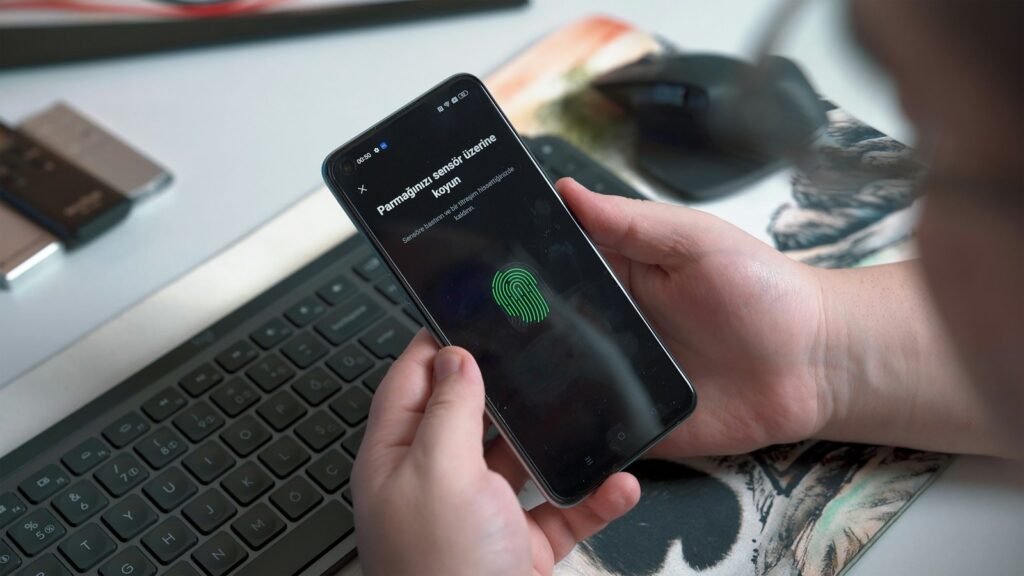
- Turn on a screen lock with fingerprint, face or PIN.
- Choose where passkeys will be saved: your device’s built-in manager or a password manager.
- Create a passkey for your email account first.
- Add passkeys to banking, shopping and social accounts that support them.
- Keep recovery email and phone details up to date.
Frequently Asked Questions
Is a passkey safer than a password?
Yes, in most cases. Passkeys cannot be reused, guessed or typed into a fake site, and websites only store a public key that is useless to attackers.
Does the website get my fingerprint?
No. Your fingerprint or face only unlocks the passkey on your own device. It is not sent to the website.
What happens if I lose my phone?
If your passkeys are synced, sign in on a new device with your Apple, Google or password manager account. If they were device-bound, use the site’s account recovery.
Can I use one passkey for many websites?
No. Each website or app gets its own passkey, which is one reason they are so secure.
Do passkeys work without internet?
Unlocking the passkey works on your device, but signing in to a website still needs a connection to that site.
Should I still use two-factor authentication?
A passkey already combines something you have (the device) with something you are or know (biometric or PIN). Keep 2FA on accounts that still use passwords.
Final Thoughts
- A passkey replaces your password with a key that never leaves your device.
- It is fast to use and strongly resists phishing.
- Set up backup and recovery before removing passwords.
- Start with your email account today.
Explore More on TechWiseToday
Sources: FIDO Alliance: Passkeys · W3C Web Authentication (WebAuthn)

Aarav Vance is a technology strategist and writer at TechWiseToday. With over 8 years of experience in software engineering and artificial intelligence, he breaks down complex tech concepts into actionable insights. When he isn't testing the latest AI tools or reviewing enterprise software, Aarav can be found writing code for open-source projects or tinkering with home automation setups.