How to Back Up Your Phone and Computer: The 3-2-1 Rule Made Simple
A step-by-step guide to backing up iPhone, Android, Windows and Mac using the 3-2-1 rule, with tips to beat ransomware and a free backup storage calculator.
 Aarav VanceUpdated November 3, 2026 · 6 min read
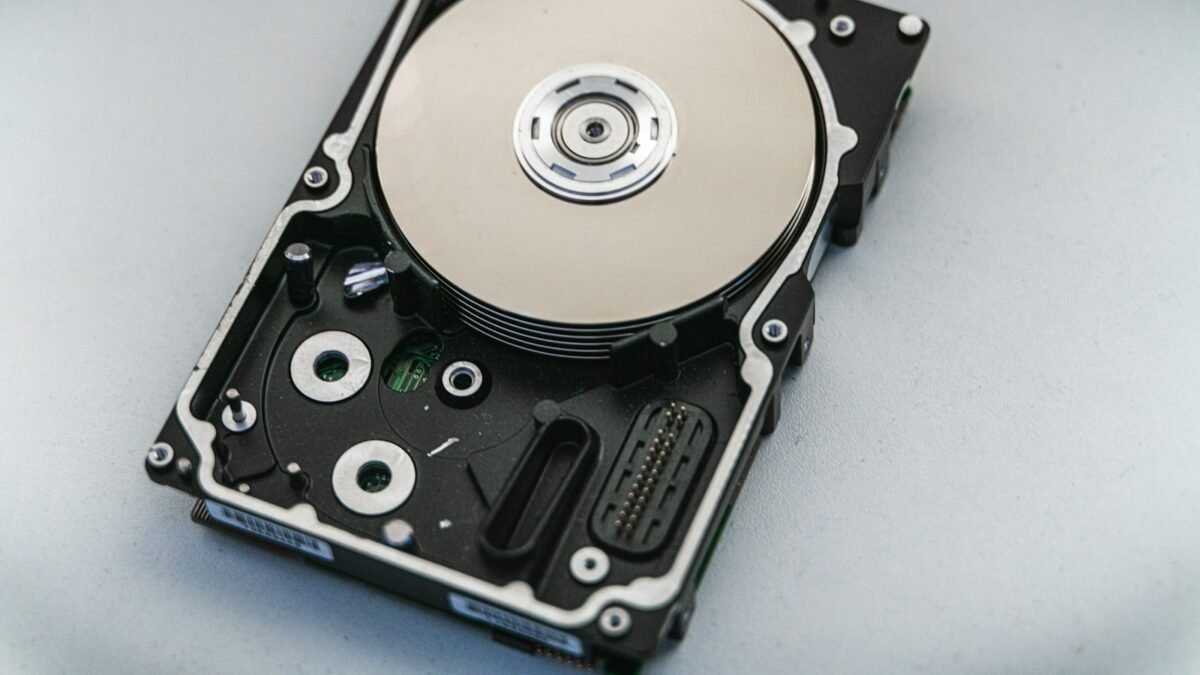
The safest way to back up is the 3-2-1 rule: keep three copies of important files, on two different types of storage, with one copy away from your home or office. In practice, that usually means your device, an external drive and a cloud backup that runs automatically.
Most people only think about backups after something goes wrong: a phone dropped in water, a laptop stolen from a car, or ransomware locking every file. By then it is too late. Setting up a simple backup takes about an hour, and then it mostly runs by itself.
This tutorial shows how to back up a phone and a computer step by step, what the 3-2-1 rule means in real life, and how to test that your backup actually works. Use the free backup storage calculator below to see how much space you need.
What Does “Backup” Really Mean?
A backup is a separate copy of your files that you can restore if the original is lost, damaged or encrypted. Syncing is not always the same thing: if you delete a file from a synced folder, the deletion can sync everywhere too.
- Backup: a separate copy, often with older versions you can go back to.
- Sync: keeps the same files identical across devices, including deletions.
- Versioning: lets you restore a file as it was last week or last month.
- Offline copy: a drive that is unplugged most of the time, safe from ransomware.
The 3-2-1 Rule in Practice
| Copy | Where | Example |
|---|---|---|
| 1. Original | Your device | Laptop, desktop or phone |
| 2. Local backup | Different storage at home | External SSD or hard drive, or a NAS |
| 3. Off-site backup | Away from your home | Cloud backup, or a drive kept at work or with family |
How to Back Up Your Computer
Windows
Use Windows Backup to save folders, settings and apps to your Microsoft account, and File History to keep versions of files on an external drive. Find them by searching “backup” in the Start menu.
Mac
Plug in an external drive and turn on Time Machine in System Settings, General, Time Machine. It keeps hourly, daily and weekly versions automatically.
Add a cloud backup
Use a cloud backup service or your cloud storage with version history turned on for your most important folders.
How to Back Up Your Phone
iPhone
Turn on iCloud Backup in Settings, your name, iCloud, iCloud Backup. You can also back up to a Mac or PC with a cable.
Android
Turn on Google One backup in Settings, Google, Backup. Photos can back up separately through Google Photos.
Photos and videos
These take the most space. Check that your photo app’s backup is switched on and not paused because storage is full.
Free Backup Storage Calculator
Enter roughly how much data you have. The calculator suggests drive and cloud sizes with room to grow. Nothing is saved.
Backup Storage Calculator
Check sizes in your phone and computer storage settings.
Types of Backup Storage
- External SSD: fast, small and tough. Great for laptops.
- External hard drive: cheaper per terabyte, but more fragile.
- NAS (network storage): a home server that backs up several devices.
- Cloud backup services: automatic, off-site and protected from fire or theft.
- Cloud storage with versioning: OneDrive, Google Drive and iCloud Drive can restore earlier versions.
Who Needs This Most?
- Students: dissertations and coursework that cannot be rewritten.
- Freelancers: client files and invoices.
- Professionals: work on personal laptops outside company backups.
- Small businesses: customer records, accounts and contracts.
Common Backup Mistakes
- Keeping the only backup drive next to the computer, where theft or fire takes both.
- Relying on sync alone without version history.
- Letting phone backups stop because cloud storage is full.
- Never testing a restore.
- Leaving the backup drive connected all the time, exposed to ransomware.
The US Cybersecurity and Infrastructure Security Agency lists offline backups as one of the best defences against ransomware.

How to Get Started
- List the files you could not bear to lose.
- Turn on your phone’s cloud backup.
- Set up Time Machine or Windows File History on an external drive.
- Add a cloud backup with version history.
- Store or rotate one copy away from home.
- Test a restore every month.
Frequently Asked Questions
How often should I back up?
Automatic daily or hourly backups are best. For manual drives, aim for at least once a week.
Is cloud storage the same as a backup?
Not always. Sync can copy deletions. Make sure version history or a separate backup is turned on.
SSD or hard drive for backups?
SSDs are faster and tougher; hard drives are cheaper for large amounts. Either works.
How long do external drives last?
Several years, but any drive can fail without warning. That is why you need more than one copy.
Should I encrypt my backups?
Yes, especially portable drives. Time Machine and most backup tools offer encryption.
Do I need to back up my phone if photos are in the cloud?
Yes. A full backup also saves messages, settings and app data.
Final Thoughts
- Follow 3-2-1: three copies, two types, one off-site.
- Automate backups so you do not have to remember.
- Test restores regularly.
Explore More on TechWiseToday

Aarav Vance is a technology strategist and writer at TechWiseToday. With over 8 years of experience in software engineering and artificial intelligence, he breaks down complex tech concepts into actionable insights. When he isn't testing the latest AI tools or reviewing enterprise software, Aarav can be found writing code for open-source projects or tinkering with home automation setups.